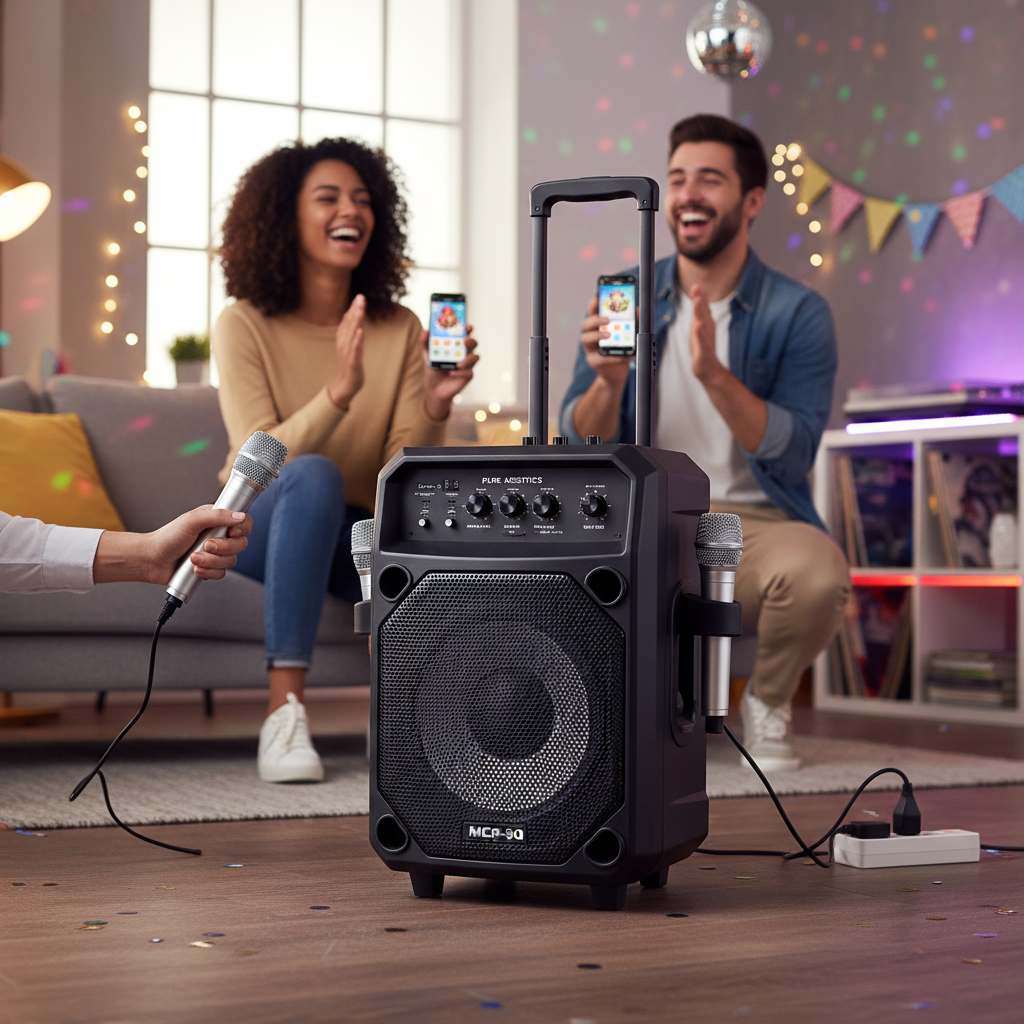
Do you dream of belting out your favorite tunes without leaving your living room? Or perhaps you’re looking for a budget-friendly way to ignite party nights with friends and family. Traditional karaoke setups often come with a hefty price tag, making the dream seem out of reach. But what if you could transform your home into a vibrant karaoke stage using something you already have access to, completely free? That’s where YouTube comes in. With its colossal library of music, YouTube offers an incredibly accessible and cost-effective solution for at-home karaoke enthusiasts. This article will guide you through everything you need to know, from essential equipment to setup options and pro tips, ensuring you can host epic karaoke sessions without spending a dime on songs or complex systems. Get ready to unleash your inner rockstar!
Essential Components for Your Home Karaoke Setup
To create a fun and functional karaoke setup with YouTube, you’ll need a few key pieces of equipment. The good news is you likely own most of them already, or they can be acquired without breaking the bank. Understanding each component’s role will help you assemble the best system for your space and budget.
Display Screen
Your display screen is where the lyrics and music video will appear. Modern options make this incredibly straightforward:
- Smart TV: The simplest approach. Most smart TVs come with a pre-installed YouTube app, allowing you to directly stream content.
- Computer or Mobile Device Connected to TV: If you don’t have a smart TV, you can connect a laptop, PC, or even a smartphone/tablet to your television. Use an HDMI cable for a direct wired connection, or wireless casting technologies like Chromecast, Apple AirPlay, or a smart TV’s built-in screen mirroring feature.
- Dedicated Monitor/Projector: For a more immersive experience, some users opt for a large computer monitor or even a projector to display lyrics on a wall.
|
Our Picks for the Best Karaoke system in 2026
As an Amazon Associate I earn from qualifying purchases.
|
||
| Num | Product | Action |
|---|---|---|
| 1 | NBVOICE Professional Portable All-in-One Integrated 2-Way PA System Fixed Setup, Suitcase Design w/ 8-Channel Mixer, 2 Speaker Stands, Bluetooth, Mic for Performances, Presentations |

|
| 2 | Karaoke Machine for Adults, Built-in 10.1" HD Lyrics Screen, Supports WiFi Bluetooth HDMI USB and TF, Portable Karaoke Player with 2 Wireless Microphones for Home Party Family Gathering |
|
| 3 | Ikarao Portable Karaoke Machine for Adults, Built-in Lyrics Display and Screen, 2 Self-Charging Wireless Microphones, Karaoke App, 140W Speaker, Connects to TV for Home Party Birthday Outdoor Camping |
|
| 4 | Karaoke Soundbar with Subwoofer for TV: Sound Bar with 2 Wireless Microphones - Home Theater Surround Sound System - Bluetooth Speaker with Remote Supports HDMI ARC/Optical/AUX/USB for TV/PC |
|
| 5 | Ikarao Smart Karaoke Machine for Adults - with Lyrics Display, 32GB Karaoke Tablet, 2 Wireless Mics, Professional Karaoke System, 300W Peak Power, 4 DJ Lights, Karaoke Speaker for Any Occasion |
|
| 6 | Portable Karaoke Machine, with Wireless Microphones, Bluetooth Party Speaker with LED Lights, Loud Subwoofer, USB/AUX, Outdoor Karaoke Speaker for Adults & Kids, Home & Party |
|
| 7 | Karaoke Machine, Portable Bluetooth 5.3 Speaker with 2 Wireless Microphones for Adults, PA System with Pitch Correction & Echo Adjustment, Supports TWS/TF Card/USB/AUX/Live for Home Party (2MICS) |
|
| 8 | VOSOCO Karaoke Machine with 2 Wireless Microphones, Portable Bluetooth Speaker for Adults Kids, PA Systems Support TWS Echo Adjust TF USB AUX for Home Party Outdoor Travel |
|
| 9 | JBL Wireless Two Microphone System with Dual-Channel Receiver, Black |
|
| 10 | Karaoke Machine, Portable Bluetooth Speaker with 2 Wireless Microphones for Adults & Kids with Lights, Karaoke Microphone with PA System Supports USB/TF/REC/FM/AUX for Home Party Home System Packages |
|
Audio System
The quality of your karaoke experience largely depends on your audio output. While your TV’s built-in speakers might suffice for casual singing, upgrading can significantly enhance the sound.
- Existing TV Speakers: A basic and free option. Simply play the YouTube video, and the audio will come through your TV. Keep in mind the sound quality might be limited, especially for vocals.
- Bluetooth Speakers or Soundbars: A step up from TV speakers, these offer richer, louder sound. Many can connect wirelessly to your smart TV or mobile device, or via an AUX cable or optical output.
- Home Theater or Hi-Fi System: If you have a dedicated audio system, you can integrate it for superior sound quality. This usually involves connecting your display device or an audio mixer to your receiver or amplifier.
- Portable PA Systems / Party Boxes: Brands like JBL PartyBox are popular choices. They combine a speaker with microphone inputs, sometimes even offering basic vocal effects, and can connect easily to your display device.
Microphone
You can’t have karaoke without a microphone! There are several types suitable for home use:
- Wired Microphones: These are generally more affordable and provide a reliable connection. They typically use a 1/4-inch jack or XLR connector, which will need to plug into either a mixer, a dedicated karaoke machine, or a speaker with a mic input.
- Wireless Microphones: Offering freedom of movement, wireless mics connect to a receiver, which then plugs into your audio system. While often pricier, they’re great for lively performances. Look for models with USB receivers that can plug directly into some smart TVs or computers, or traditional receivers that connect to a mixer.
- Karaoke Machine with Included Mics: Many all-in-one karaoke machines come with their own microphones and can be connected to your TV for displaying YouTube content.
Audio Mixer (Optional, but Recommended for Quality)
An audio mixer is a crucial component for anyone serious about sound quality and control in their home karaoke setup. It allows you to blend your voice from the microphone with the music from YouTube seamlessly.
- Function: The mixer takes the audio signal from your microphone(s) and the music signal from your TV/device, combines them, and sends the mixed output to your external speakers.
- Benefits: You can adjust individual microphone volumes, add effects like reverb or echo to your vocals, and fine-tune the balance between your voice and the background music. This creates a more professional and enjoyable sound.
- Connectivity: Mixers usually have multiple inputs for microphones and an auxiliary input for music. They output to your speakers via RCA, 1/4-inch, or XLR connections.
Cables and Adapters
Having the right cables and adapters ensures all your components can communicate effectively:
- HDMI Cable: Essential for connecting a computer, streaming device, or dedicated karaoke machine to your TV for both video and audio.
- AUX Cable (3.5mm): Common for connecting mobile devices, computers, or some mixers to speakers.
- Optical Audio Cable: Many smart TVs and soundbars use this for high-quality digital audio output. You might need a Digital-to-Analog Converter (DAC) if your mixer or speakers only accept analog inputs.
- USB-C Hub: For modern laptops or tablets, a USB-C hub with HDMI and AUX ports can be useful for splitting video to your TV while sending audio directly to a speaker or mixer, helping to reduce latency.
- Microphone Cables: Depending on your microphone and mixer, these could be XLR to XLR, XLR to 1/4-inch, or 1/4-inch to 1/4-inch.
Step-by-Step Guide to Setting Up YouTube Karaoke
Setting up your home karaoke system using YouTube can be as simple or as elaborate as you wish. Here are a few common approaches, from basic to more advanced.
Option 1: Simple Smart TV Setup (Minimal Equipment)
This is the quickest and easiest way to get started if you have a smart TV and a basic microphone.
- Connect Your Microphone: If your smart TV has a USB port that supports audio input, you might be able to plug in a USB microphone directly. Alternatively, if you have a simple karaoke machine with microphone inputs, connect your microphone to it and then connect the machine to your TV via HDMI. Some portable Bluetooth speakers also have microphone inputs, allowing you to connect your mic to the speaker and then pair the speaker with your TV.
- Access YouTube: Open the YouTube app on your smart TV.
- Find Karaoke Songs: Use the search bar to look for “[song title] karaoke” or “[artist name] karaoke version.” Many channels, like “Stingray Karaoke” or “Sing King Karaoke,” offer extensive libraries.
- Start Singing! Play the video and sing along using your microphone. Adjust the volume on your TV and microphone (if applicable) for the best balance.
Option 2: Enhanced Setup with External Speakers and Mixer (Best Quality)
For a more robust and professional sound, incorporating a mixer and external speakers is highly recommended.
- Connect Your Device to TV: Connect your laptop, PC, or mobile device to your TV using an HDMI cable for video display. If using a mobile device, you might use an adapter (like a USB-C to HDMI adapter) or cast wirelessly via Chromecast or AirPlay.
- Connect Audio to Mixer:
- From TV: If your TV has an audio output (like HDMI ARC, optical, or AUX), connect it to an input on your mixer. For optical output, you might need a Digital-to-Analog Converter (DAC) to convert the signal for your mixer’s analog inputs.
- Direct from Device: For better latency control, especially with laptops or tablets, you can connect an AUX cable from your device’s headphone jack (or a USB-C hub with an AUX port) directly to an input on your mixer.
- Connect Microphones to Mixer: Plug your wired or wireless microphone receiver(s) into the microphone inputs on your mixer.
- Connect Mixer to External Speakers: Run an audio cable (RCA, 1/4-inch, or XLR, depending on your equipment) from the main output of your mixer to the input of your external speakers, soundbar, or home theater receiver.
- Configure TV Audio Settings: Go into your TV’s audio settings and select the correct audio output (e.g., HDMI ARC, optical, or external speakers) to ensure the music goes to your mixer, not just your TV speakers. Disable any internal TV speakers if needed.
- Adjust Levels and Test: Turn on all components. Play a karaoke track from YouTube. Adjust the master volume on your speakers, then use the mixer to balance the music volume and individual microphone volumes. Add any desired vocal effects like reverb. Test with a quick song!
Option 3: Using a Dedicated Karaoke Machine
If you already own an all-in-one karaoke machine, you can leverage it with YouTube.
- Connect Karaoke Machine to TV: Use an HDMI cable to connect the karaoke machine to your TV for video output.
- Access YouTube: Many modern karaoke machines have built-in Wi-Fi and apps, including YouTube. If not, connect a laptop or mobile device to your karaoke machine’s auxiliary input for audio and use its HDMI output to your TV for video.
- Use Machine’s Mics and Effects: Your karaoke machine will handle microphone input, vocal mixing, and effects. Simply use YouTube on the machine (or a connected device) to play tracks.
Finding the Best Free Karaoke Tracks on YouTube
YouTube is a treasure trove of karaoke content, but knowing how to search effectively can save you time.
- Specific Song Searches: The most common way is to type “[Song Title] Karaoke” or “[Artist Name] Instrumental with Lyrics” into the YouTube search bar.
- Official Karaoke Channels: Several channels specialize in high-quality karaoke versions. Look for:
- Stingray Karaoke: A very popular channel offering a vast selection of genres and eras.
- Sing King Karaoke: Another excellent resource known for its professional-sounding instrumental tracks and clear lyrics.
- The Karaoke Channel: Offers a wide variety of tracks.
- Genre-Specific Playlists: Search for “80s karaoke hits,” “pop karaoke songs,” “country karaoke,” or “Disney karaoke” to find curated playlists.
- Create Your Own Playlists: As you discover favorite tracks, add them to a YouTube playlist. This allows for seamless transitions between songs during your karaoke session, avoiding constant searching. You can even create collaborative playlists for parties.
Optimizing Your YouTube Karaoke Experience
Once your system is set up, a few tweaks can elevate your home karaoke party from good to unforgettable.
- Prioritize Sound Quality: While YouTube offers free tracks, the audio quality can vary. Opt for videos labeled “HD Karaoke” or from reputable channels. Crucially, using external speakers rather than just your TV’s built-in sound will make a monumental difference in how the music and your voice are heard.
- Minimize Latency (Audio Delay): Audio lag between your voice and the music can be frustrating. To reduce this:
- Use wired connections (HDMI, AUX) whenever possible instead of relying solely on Bluetooth, which can introduce delays.
- If using a USB-C hub, ensure it directs audio directly to your speaker/mixer, bypassing potential TV processing delays.
- In your TV settings, look for a “Game Mode” or similar low-latency option, as this often reduces audio processing.
- Managing Ads on Free YouTube: One drawback of using free YouTube is intermittent advertisements. While they can be a buzzkill, you can either pause and skip them when they appear or consider a YouTube Premium subscription for an ad-free experience (though this isn’t free). For free alternatives, embrace the short breaks for hydration or applause!
- Room Acoustics and Microphone Technique: Even at home, a few tricks can help your vocals shine. Avoid singing directly into reflective surfaces like bare walls. Hold the microphone close to your mouth (about an inch or two away) and point it towards you, not towards the speakers, to prevent feedback.
- Diversify Your Song Selection: Encourage everyone to pick songs they genuinely love, but also introduce some crowd-pleasers or duet options to keep the energy high. Having a warm-up song or two at the beginning can help everyone get comfortable.
Common Troubleshooting Tips
Even with the best setup, you might encounter minor hiccups. Here’s how to quickly resolve some common issues.
- No Sound from Microphone:
- Check Connections: Ensure the microphone is securely plugged into its input (mixer, speaker, or karaoke machine).
- Volume Levels: Turn up the microphone’s volume knob (if it has one) and the input gain on your mixer or speaker.
- Input Selection: Confirm that your mixer or speaker is set to the correct input channel for your microphone.
- Power: If it’s a wireless mic, check if it’s charged and turned on, and that its receiver is powered.
- Echo or Feedback (High-Pitched Squeal):
- Microphone Placement: Do not point the microphone directly at your speakers. Keep it behind the speakers if possible.
- Volume Adjustment: Gradually lower the microphone volume or gain until the feedback stops.
- Room Acoustics: In highly reflective rooms, adding soft furnishings (rugs, curtains) can help absorb sound and reduce echo.
- Effects: If using a mixer, reduce the amount of reverb or echo applied to the vocals.
- Lag or Delay Between Vocals and Music:
- Wired Connections: Revert to wired connections (HDMI, AUX) as much as possible, as wireless connections can introduce latency.
- Direct Audio Path: If you’re routing TV audio to a mixer, try connecting your music source (laptop/tablet) directly to the mixer’s AUX input, bypassing the TV’s audio processing.
- TV Settings: Check your TV’s audio settings for any processing features (like surround sound enhancements) that might add delay and try turning them off. “Game Mode” on your TV can also reduce latency.
- Poor Music Quality from YouTube:
- Video Resolution: Ensure you’re playing a high-resolution video (720p or 1080p). Lower resolution videos often have lower audio bitrate.
- Speaker Quality: If your speakers are very basic, they might struggle to reproduce rich audio. Investing in even a modest external speaker can make a big difference.
- Internet Speed: A slow internet connection can cause buffering and reduce audio quality.
Conclusion
Embracing YouTube for your home karaoke system is a fantastic way to enjoy endless singing fun without the commitment of expensive equipment or subscriptions. With just a few essential components—a display screen, an audio system, and a microphone—you can transform any space into a vibrant performance venue. Whether you opt for a simple smart TV setup or a more advanced configuration with a mixer, the vast, free library of karaoke tracks on YouTube ensures you’ll always have a song to sing. So, what are you waiting for? Gather your friends, pick your favorite tunes, and get ready to create unforgettable musical memories right at home. What’s the first song you’ll be belting out?