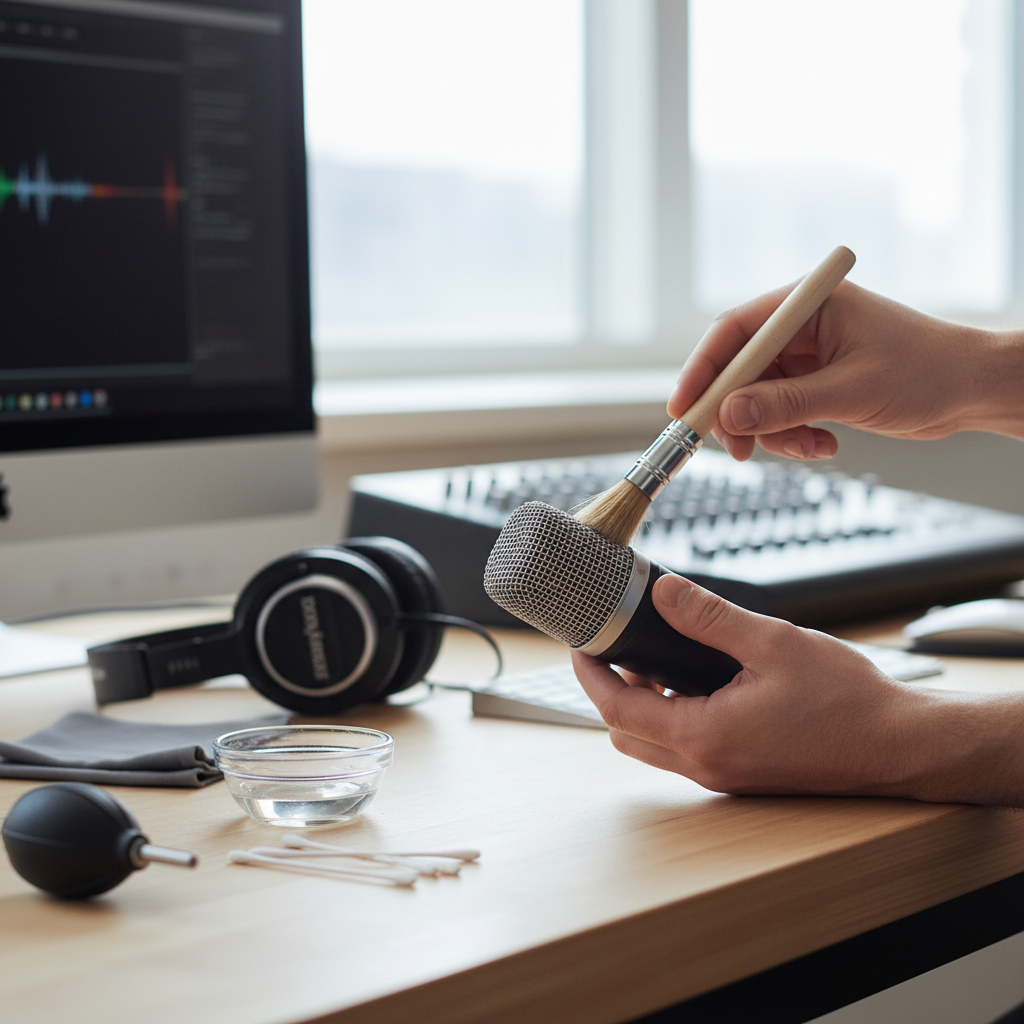
Dreaming of epic karaoke nights right in your living room? Bringing the joy of singing to your home entertainment setup is more accessible than ever, thanks to the versatility of smart TVs. While connecting a karaoke microphone might seem a bit technical, it’s a completely achievable DIY project that transforms your TV into a singing stage. With a little guidance and the right components, you can enjoy crystal-clear vocals and seamless musical accompaniment without needing a professional sound engineer.
This guide will walk you through various methods to connect your karaoke microphone to your smart TV, covering everything from simple Bluetooth setups to more advanced configurations using audio mixers. You’ll learn what equipment you need, step-by-step connection instructions, and how to troubleshoot common issues to ensure your home karaoke system sounds fantastic. Get ready to unleash your inner rock star!
Factors to Consider Before You Start
Before diving into the connections, understanding a few key factors about your equipment and desired setup will make the process much smoother.
Your Smart TV’s Audio Ports (Input/Output)
Not all smart TVs are created equal when it comes to audio connections. Most TVs primarily feature audio output ports, designed to send sound from the TV to external speakers or soundbars. Direct microphone input ports (like a dedicated XLR or 1/4″ jack) are rare on consumer smart TVs.
Common audio output ports you might find include:
- HDMI ARC/eARC: Allows audio to be sent from the TV to a compatible sound system via an HDMI cable. This is often the best option for high-quality digital audio.
- Optical (Toslink/SPDIF): A digital audio output that transmits sound using light.
- 3.5mm Headphone Jack: A common analog output for headphones, which can sometimes be used to send audio to other devices.
- RCA (Red and White Ports): Analog audio outputs, less common on newer smart TVs but still present on some.
- Bluetooth: Many modern smart TVs feature built-in Bluetooth, allowing for wireless audio connections to speakers or headphones.
|
Our Picks for the Best Karaoke system in 2026
As an Amazon Associate I earn from qualifying purchases.
|
||
| Num | Product | Action |
|---|---|---|
| 1 | Ikarao Portable Karaoke Machine for Adults, Built-in Lyrics Display and Screen, 2 Self-Charging Wireless Microphones, Karaoke App, 140W Speaker, Connects to TV for Home Party Birthday Outdoor Camping |

|
| 2 | Karaoke Soundbar with Subwoofer for TV: Sound Bar with 2 Wireless Microphones - Home Theater Surround Sound System - Bluetooth Speaker with Remote Supports HDMI ARC/Optical/AUX/USB for TV/PC |
|
| 3 | NBVOICE Professional Portable All-in-One Integrated 2-Way PA System Fixed Setup, Suitcase Design w/ 8-Channel Mixer, 2 Speaker Stands, Bluetooth, Mic for Performances, Presentations |
|
| 4 | Portable Karaoke Machine, with Wireless Microphones, Bluetooth Party Speaker with LED Lights, Loud Subwoofer, USB/AUX, Outdoor Karaoke Speaker for Adults & Kids, Home & Party |
|
| 5 | Karaoke Machine, Portable Bluetooth 5.3 Speaker with 2 Wireless Microphones for Adults, PA System with Pitch Correction & Echo Adjustment, Supports TWS/TF Card/USB/AUX/Live for Home Party (2MICS) |
|
| 6 | Ikarao Smart Karaoke Machine for Adults - with Lyrics Display, 32GB Karaoke Tablet, 2 Wireless Mics, Professional Karaoke System, 300W Peak Power, 4 DJ Lights, Karaoke Speaker for Any Occasion |
|
| 7 | Karaoke Machine, Portable Bluetooth Speaker with 2 Wireless Microphones for Adults & Kids with Lights, Karaoke Microphone with PA System Supports USB/TF/REC/FM/AUX for Home Party Home System Packages |
|
| 8 | JBL Wireless Two Microphone System with Dual-Channel Receiver, Black |
|
| 9 | Karaoke Machine for Adults, Built-in 10.1" HD Lyrics Screen, Supports WiFi Bluetooth HDMI USB and TF, Portable Karaoke Player with 2 Wireless Microphones for Home Party Family Gathering |
|
| 10 | VOSOCO Karaoke Machine with 2 Wireless Microphones, Portable Bluetooth Speaker for Adults Kids, PA Systems Support TWS Echo Adjust TF USB AUX for Home Party Outdoor Travel |
|
Type of Microphone (Wired vs. Wireless)
Your microphone choice impacts the connection method.
- Wired Microphones: These typically use XLR or 1/4″ (6.35mm) jacks. They require an input device that accepts these connections, such as an audio mixer or a dedicated karaoke machine.
- Wireless Microphones: These come with a receiver that plugs into an audio input source. Some modern wireless mics also feature Bluetooth connectivity, allowing direct pairing with compatible devices. USB wireless mics often include a dongle that can plug into a USB port.
Desired Sound Quality and Features
Simply connecting a microphone might not give you the full karaoke experience. For features like echo, reverb, or independent volume control for music and vocals, an external audio mixer or a dedicated karaoke machine is usually essential. Your TV’s internal speakers are often not designed to handle microphone input and music playback simultaneously with good quality.
External Audio Equipment You Already Have
Do you own a soundbar, home theater system, an old stereo receiver, or even a portable Bluetooth speaker? These can all be integrated into your karaoke setup to provide better sound output than your TV’s built-in speakers.
Essential Components of a DIY Karaoke System
To build a robust home karaoke system, you’ll typically need more than just a microphone and your smart TV. Here are the key components:
- Microphone(s): Choose wired or wireless based on your preference and budget. Wireless offers more freedom of movement.
- Smart TV: Your central hub for displaying lyrics and playing music videos (e.g., via YouTube or karaoke apps).
- Audio Mixer or Dedicated Karaoke Machine: This is often the most crucial component. It combines your microphone’s audio with the music from your TV, allowing you to control volumes, add effects (like echo), and output a mixed sound. A dedicated karaoke machine will have these functions built-in, while a standalone mixer offers more flexibility.
- External Speakers/Soundbar: While your TV speakers might work in a pinch, external speakers or a soundbar will dramatically improve sound quality, power, and clarity for both music and vocals. Many karaoke machines also come with built-in speakers.
- Necessary Cables and Adapters:
- HDMI Cables: For video and potentially audio (ARC/eARC).
- RCA Cables (Red & White): For analog audio connections.
- 3.5mm AUX Cable: For connecting devices with headphone jacks.
- Optical Audio Cable (Toslink): For digital audio output from your TV.
- HDMI Audio Extractor: If your TV’s HDMI ARC output is already in use or you need to split audio from an HDMI source for your mixer.
- Digital-to-Analog Converter (DAC): If your TV has optical output but your mixer/sound system only accepts analog (RCA/3.5mm).
- 1/4″ to RCA Adapters: If your mixer/karaoke machine has 1/4″ inputs but your TV outputs RCA.
- USB-C to USB Adapter: For some wireless mic transmitters that plug into a TV’s USB port.
Connecting Your Karaoke Mic to a Smart TV: Step-by-Step Methods
Here are the most common and effective DIY methods for connecting your karaoke microphone to a smart TV.
Method 1: Using a Bluetooth Karaoke Speaker/Mic System (Simple Wireless Setup)
This is one of the simplest methods if you have a Bluetooth-enabled karaoke speaker with a microphone or a dedicated Bluetooth microphone.
What you need:
- Smart TV with Bluetooth capability
- Bluetooth karaoke speaker with mic input (or a Bluetooth microphone)
Steps:
- Power On and Activate Pairing: Ensure your Bluetooth karaoke speaker (or microphone) is fully charged or plugged in and turn it on. Activate its Bluetooth pairing mode (usually by pressing a dedicated Bluetooth button or holding the power button).
- Access TV’s Bluetooth Settings: Using your TV remote, navigate to the settings or system menu. Look for options like “Bluetooth,” “Wireless Devices,” or “Sound Output.”
- Scan for Devices: In the Bluetooth settings, choose to scan or search for nearby Bluetooth devices.
- Select and Pair: When your Bluetooth karaoke speaker or microphone appears in the list of available devices, select it to pair. Once connected, your TV’s audio will be routed through the Bluetooth speaker.
- Test and Adjust: Play a karaoke track from YouTube or an app on your TV. Sing into the microphone connected to your Bluetooth speaker. Adjust the volume levels on both the TV and the speaker for a balanced mix.
Pros: Simple setup, minimal cables, good for casual use.
Cons: Potential for audio delay (latency) between vocals and music, which can be frustrating for singing. Sound quality might not be as high as with a dedicated mixer and speakers.
Method 2: Via an Audio Mixer (Most Versatile and Recommended)
Using an audio mixer provides the most control over your sound, allowing for better mixing of vocals and music, and the addition of effects. This is the closest you’ll get to a professional karaoke setup at home.
What you need:
- Smart TV
- Audio mixer (e.g., Behringer Xenyx 502 or similar simple mixer)
- Microphone(s) (wired or wireless with a receiver that plugs into the mixer)
- External powered speakers or an amplifier and passive speakers
- Necessary cables (HDMI, Optical, RCA, 3.5mm, 1/4″ to RCA adapters, HDMI audio extractor, DAC – depending on your TV and mixer ports)
Steps:
Part A: Connecting TV Audio Output to the Mixer
The goal here is to get the music from your TV into your mixer.
- HDMI ARC/eARC (Best Quality):
- If your TV has HDMI ARC/eARC and your mixer accepts HDMI (rare for small mixers), connect them directly.
- More commonly, use an HDMI audio extractor. Connect your streaming device (Fire Stick, Chromecast, etc.) to the extractor’s HDMI input. Connect the extractor’s HDMI output to your TV (for video). Connect the extractor’s audio output (often RCA or 3.5mm) to your mixer’s line input.
- Optical (Digital Audio Out):
- Connect an optical cable from your TV’s optical output to a Digital-to-Analog Converter (DAC).
- Connect the DAC’s RCA analog output to your mixer’s line input (typically red and white RCA jacks).
- 3.5mm Headphone Jack (Analog):
- Connect a 3.5mm audio cable from your TV’s headphone jack to a 3.5mm input on your mixer, or use a 3.5mm to dual RCA adapter to connect to RCA line inputs on the mixer.
- RCA Audio Out (Analog):
- Connect RCA cables (red and white) from your TV’s audio output to the RCA line inputs on your mixer.
Part B: Connecting Microphone(s) to the Mixer
- Plug your wired microphone(s) directly into the microphone (XLR or 1/4″) inputs on your mixer.
- For wireless microphones, connect the wireless receiver’s output (usually 1/4″ or XLR) into the appropriate inputs on your mixer.
Part C: Connecting Mixer Output to External Speakers
- Connect the main stereo output of your mixer (often 1/4″ jacks or RCA) to your external powered speakers or to the input of an amplifier connected to passive speakers.
Part D: Final Adjustments
- Turn on all devices (TV, mixer, speakers).
- Select the correct audio input on your TV (if using an HDMI audio extractor, this would be the HDMI port your streaming device is connected to).
- On your mixer, adjust the gain and volume levels for both the music input from your TV and your microphone(s). Add any desired effects like echo.
- Play a karaoke track and test the sound, ensuring a good balance between vocals and music without feedback.
Pros: Professional sound quality, full control over vocals and music, ability to add effects, expandability (multiple mics, instruments).
Cons: More complex setup, requires more equipment, higher initial investment.
Method 3: Using a Dedicated Karaoke Machine (All-in-One Solution)
A dedicated karaoke machine simplifies the process by integrating mic inputs, mixing capabilities, and often music playback (CDG, USB, or streaming).
What you need:
- Smart TV
- Dedicated karaoke machine with mic inputs and audio/video outputs
- Microphone(s) (often included with the machine or purchased separately)
- HDMI or RCA cables
- (Optional) External speakers/soundbar for improved audio
Steps:
- Connect Karaoke Machine to TV:
- HDMI (Recommended): Connect an HDMI cable from the karaoke machine’s HDMI output to an available HDMI input on your smart TV. This will send both video (lyrics) and potentially music audio to your TV.
- RCA: If your machine only has RCA outputs, connect the red, white (audio), and yellow (video) cables to the corresponding inputs on your TV.
- Connect Microphones: Plug your microphone(s) into the dedicated microphone input jacks on the karaoke machine.
- Audio Output (Optional but Recommended): While your TV may output the audio from the karaoke machine, for better sound quality, connect the karaoke machine’s audio output (RCA or 3.5mm) to external speakers or a soundbar.
- Select Input on TV: Switch your TV’s input source to the HDMI or AV input where your karaoke machine is connected.
- Play and Adjust: Use the karaoke machine’s interface to select songs. Adjust microphone volume, music volume, and any effects (like echo) directly on the karaoke machine.
Pros: User-friendly, often designed specifically for karaoke features, can be an all-in-one unit.
Cons: May offer less flexibility than a separate mixer, can be bulky, some older models have limited connectivity options.
Method 4: USB Microphones (Limited Use Cases)
Some smart TVs, particularly Android TVs, have USB ports that can recognize certain USB microphones. However, this method is typically for voice commands, video calls, or simple recordings, not full-fledged karaoke with music mixing.
What you need:
- Smart TV with available USB port
- USB microphone (or a wireless mic with a USB receiver dongle)
- (Optional) USB-C to USB adapter if your mic is USB-C
Steps:
- Plug in Microphone: Insert the USB microphone directly into an available USB port on your smart TV. If it’s a wireless mic with a USB dongle, plug in the dongle and turn on the mic.
- Check TV Settings: Your TV might automatically detect the microphone. Go into your TV’s audio input settings to see if the USB mic is recognized and selected as the input device.
- Test Functionality: Use a voice search feature or a video conferencing app on your TV (if available) to test if the microphone is picking up sound.
Pros: Extremely simple, no extra gear needed besides the mic.
Cons: Very limited for karaoke – no mixing with music, no effects, often only works for specific apps or voice commands. Not suitable for most home karaoke needs.
Troubleshooting Common Karaoke Connection Issues
Even with the best planning, you might encounter a few hiccups. Here’s how to address common problems:
-
No Sound from Microphone:
- Check Connections: Ensure all cables are securely plugged in and connected to the correct ports (input to input, output to output).
- Power: Verify your mixer, karaoke machine, and speakers are powered on.
- Volume Levels: Turn up the microphone volume/gain on your mixer or karaoke machine. Check that the master volume is also up.
- Mute Button: Ensure your microphone is not muted.
- Input Selection: Confirm the correct input source is selected on your TV, mixer, and any other audio devices.
- Microphone Functionality: Test the microphone on another device if possible to ensure it’s working correctly.
-
Audio Delay (Latency):
- Bluetooth Connections: This is a common issue with Bluetooth, as wireless transmission introduces a slight delay. Try switching to a wired connection (HDMI, optical, RCA) if possible.
- TV/Device Settings: Check your TV’s audio settings for any “audio delay” or “lip-sync” adjustments. Some TVs have a game mode that can reduce latency.
- External Processors: If using an audio processor, ensure it’s not introducing excessive delay.
-
Sound Distortion/Feedback:
- Gain Staging: If the sound is distorted, your input gain (microphone volume on the mixer) might be too high. Reduce the gain first, then increase the master volume.
- Feedback: Feedback (that high-pitched squeal) occurs when microphone sound re-enters the microphone.
- Point microphones away from speakers.
- Move speakers further away from microphones.
- Lower the microphone volume or gain.
- Use a mixer with feedback suppression if available.
- Avoid standing directly in front of speakers while singing.
-
Music Too Loud/Mic Too Quiet:
- Mixer Adjustments: This is where your audio mixer shines. Use the individual volume faders/knobs on your mixer to balance the music input and microphone input levels.
- TV Volume: Adjust your TV’s volume for the music source.
- Speaker Volume: Control the overall output volume from your external speakers.
Choosing the Right Karaoke System for Your Needs
Selecting the perfect setup depends on your personal situation and aspirations.
- Budget: Simple Bluetooth setups are the most affordable. Dedicated karaoke machines are a mid-range option. A quality mixer with separate speakers involves a higher initial investment but offers superior performance and longevity.
- Space: For small apartments, a compact Bluetooth karaoke speaker might suffice. For larger living rooms or dedicated entertainment spaces, a mixer and external speakers will provide a richer experience.
- Purpose:
- Casual Singers: If you just want to sing along occasionally, a Bluetooth karaoke speaker or even a simple USB mic (for limited use) might be enough.
- Frequent Parties/Serious Hobbyists: An audio mixer with good external speakers or a feature-rich dedicated karaoke machine is highly recommended for the best sound quality and control.
- Technical Comfort Level: If you prefer plug-and-play simplicity, opt for a Bluetooth system or a dedicated karaoke machine. If you enjoy fine-tuning sound and don’t mind a few more cables, an audio mixer is an excellent choice.
Conclusion
Connecting a karaoke microphone to your smart TV doesn’t have to be a daunting task. Whether you opt for the simplicity of a Bluetooth connection, the versatility of an audio mixer, or the all-in-one convenience of a dedicated karaoke machine, there’s a DIY solution that fits your needs. By understanding your TV’s capabilities and the various connection methods, you can build a home karaoke system that delivers fantastic sound and endless fun.
Remember, the goal is to create an enjoyable and immersive singing experience. Don’t be afraid to experiment with different settings and components to find what works best for you. Now that you’re equipped with the knowledge, it’s time to gather your gear, choose your favorite tunes, and get ready to sing your heart out!
Are you ready to transform your living room into the ultimate karaoke stage?
Câu Hỏi Thường Gặp
Can I connect a regular microphone directly to my smart TV?
Generally, no. Most smart TVs lack dedicated microphone input ports designed for singing and mixing vocals with music. TVs primarily have audio outputs. For proper karaoke, you’ll almost always need an intermediary device like an audio mixer, a karaoke machine, or a Bluetooth karaoke speaker to process the microphone’s signal before it interacts with your TV’s audio.
What is an HDMI audio extractor and do I need one for karaoke?
An HDMI audio extractor is a device that splits the audio signal from an HDMI source, allowing you to send the video to your TV and the audio to a separate sound system or mixer. You might need one if your TV’s HDMI ARC/eARC port is unavailable, or if you want to route audio from an HDMI-connected streaming device through an external mixer for better control.
How do I reduce audio delay when using a Bluetooth karaoke mic?
Audio delay (latency) is a common challenge with Bluetooth. To minimize it, ensure your devices have the latest firmware updates. If possible, opt for a wired connection (e.g., connecting your karaoke speaker/mixer to your TV via HDMI ARC, optical, or RCA) as wired connections typically have no noticeable latency. Some TVs also have audio delay settings you can adjust.
What are the best karaoke apps for a smart TV?
Many smart TVs, especially Android-based models, support popular karaoke apps. You can find a vast library of karaoke tracks on YouTube. Dedicated apps like Smule, Starmaker, KaraFun, and even Apple Music (with karaoke features) offer high-quality instrumental versions and lyrics, enhancing your home karaoke experience directly on your smart TV.
Do I need external speakers for a good home karaoke experience?
While your TV’s built-in speakers will provide some sound, they are generally inadequate for a truly immersive and high-quality karaoke experience. External speakers or a soundbar offer much better clarity, volume, and bass, allowing both the music and your vocals to shine. For optimal sound, connecting your mixer or karaoke machine to a dedicated sound system is highly recommended.