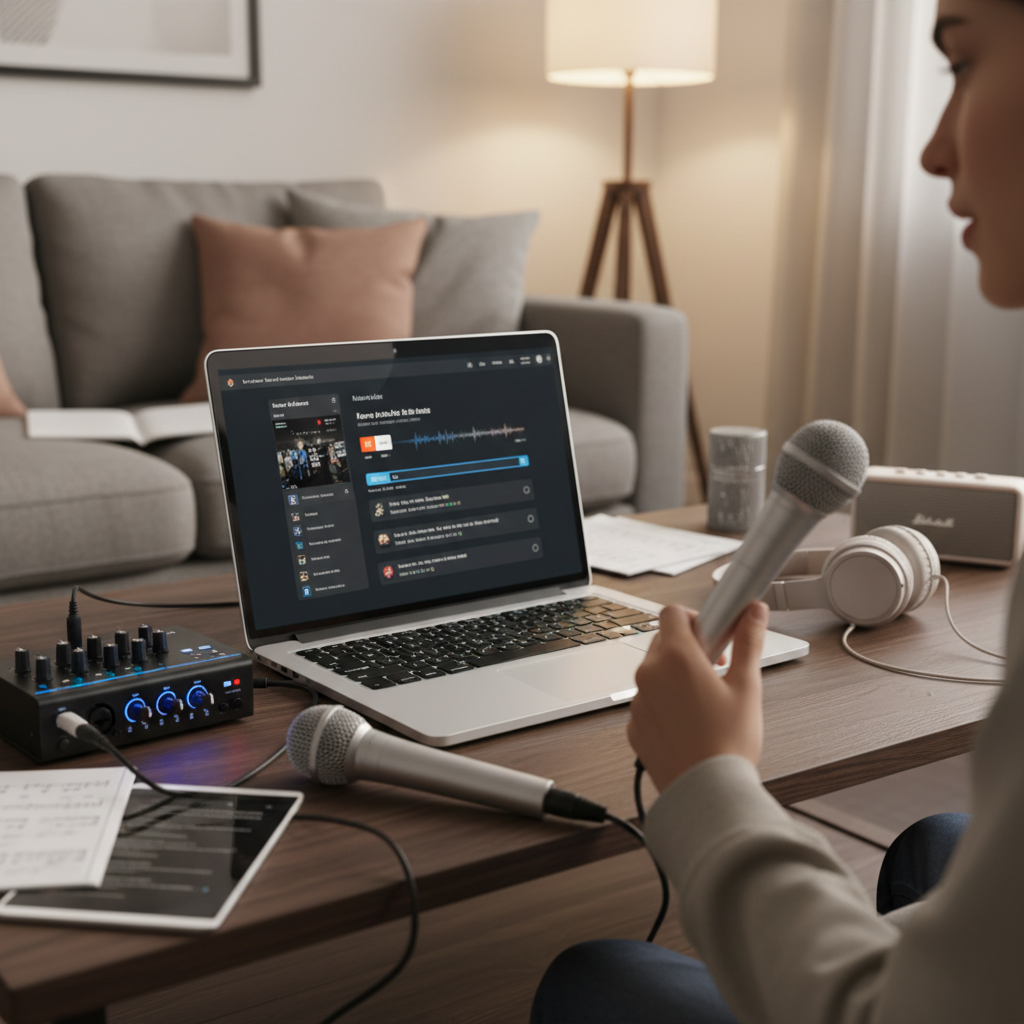
There’s nothing quite as frustrating as stepping up to the microphone, ready to deliver a powerful speech, sing your heart out, or host an important event, only to be met with crackling, static, or sudden dropouts. Wireless microphones offer incredible freedom and flexibility, making them indispensable for performers, presenters, and content creators alike. However, this convenience sometimes comes with the challenge of interference. If you’ve ever found yourself battling a noisy or unreliable wireless mic, you know the struggle is real.
This comprehensive guide is designed to transform you from an interference-frustrated user into a confident troubleshooter. We’ll delve into the most common causes of wireless microphone interference, provide a step-by-step approach to diagnosing and resolving issues, and equip you with practical preventative measures to ensure your audio always comes through crystal clear. Say goodbye to unwanted noise and embrace the pure sound your wireless system was designed to deliver.
Understanding the Roots of Wireless Microphone Interference
Before you can fix an issue, you need to understand what’s causing it. Wireless microphone interference isn’t a single problem but a symptom of various factors disrupting the radio frequency (RF) signal between your microphone transmitter and its receiver. Identifying the specific culprit is the first critical step toward a solution.
Frequency Conflicts
One of the most prevalent causes of wireless mic issues stems from frequency conflicts. Wireless microphones operate on specific radio frequencies, and when multiple devices try to use the same or overlapping frequencies, interference is inevitable.
- External RF Signals: Your wireless microphone system shares the airwaves with a multitude of other devices. This includes broadcast television and radio stations, emergency services communications, and even other wireless microphones operating in close proximity. If your system’s frequency lands on or too close to an active external RF signal, it will pick up that signal as noise or static.
- Intermodulation (IMD): This complex phenomenon occurs when two or more wireless transmitters in the same area create new, unwanted frequencies that can interfere with other active wireless systems. The more wireless mics you operate simultaneously, the higher the risk of intermodulation. It’s a common issue in multi-microphone setups, like live theatre or large conferences.
- 2.4 GHz Band Overlap: Many entry-level and digital wireless systems operate in the 2.4 GHz frequency band. While this band is globally license-free, it’s also incredibly crowded. Wi-Fi networks, Bluetooth devices, microwave ovens, cordless phones, and even some smart home devices all vie for space in this spectrum, making it highly susceptible to interference.
|
Our Picks for the Best Karaoke system in 2026
As an Amazon Associate I earn from qualifying purchases.
|
||
| Num | Product | Action |
|---|---|---|
| 1 | NBVOICE Professional Portable All-in-One Integrated 2-Way PA System Fixed Setup, Suitcase Design w/ 8-Channel Mixer, 2 Speaker Stands, Bluetooth, Mic for Performances, Presentations |

|
| 2 | Ikarao Portable Karaoke Machine for Adults, Built-in Lyrics Display and Screen, 2 Self-Charging Wireless Microphones, Karaoke App, 140W Speaker, Connects to TV for Home Party Birthday Outdoor Camping |
|
| 3 | Karaoke Soundbar with Subwoofer for TV: Sound Bar with 2 Wireless Microphones - Home Theater Surround Sound System - Bluetooth Speaker with Remote Supports HDMI ARC/Optical/AUX/USB for TV/PC |
|
| 4 | Karaoke Machine for Adults, Built-in 10.1" HD Lyrics Screen, Supports WiFi Bluetooth HDMI USB and TF, Portable Karaoke Player with 2 Wireless Microphones for Home Party Family Gathering |
|
| 5 | Portable Karaoke Machine, with Wireless Microphones, Bluetooth Party Speaker with LED Lights, Loud Subwoofer, USB/AUX, Outdoor Karaoke Speaker for Adults & Kids, Home & Party |
|
| 6 | Karaoke Machine, Portable Bluetooth Speaker with 2 Wireless Microphones for Adults & Kids with Lights, Karaoke Microphone with PA System Supports USB/TF/REC/FM/AUX for Home Party Home System Packages |
|
| 7 | VOSOCO Karaoke Machine with 2 Wireless Microphones, Portable Bluetooth Speaker for Adults Kids, PA Systems Support TWS Echo Adjust TF USB AUX for Home Party Outdoor Travel |
|
| 8 | JBL Wireless Two Microphone System with Dual-Channel Receiver, Black |
|
| 9 | Ikarao Smart Karaoke Machine for Adults - with Lyrics Display, 32GB Karaoke Tablet, 2 Wireless Mics, Professional Karaoke System, 300W Peak Power, 4 DJ Lights, Karaoke Speaker for Any Occasion |
|
| 10 | Karaoke Machine, Portable Bluetooth 5.3 Speaker with 2 Wireless Microphones for Adults, PA System with Pitch Correction & Echo Adjustment, Supports TWS/TF Card/USB/AUX/Live for Home Party (2MICS) |
|
Signal Blockage and Range Issues
Radio waves, while invisible, are physical phenomena that can be obstructed or degraded by their environment.
- Distance and Obstacles: The further your microphone transmitter is from its receiver, the weaker the signal becomes. Walls, metal structures, large crowds, and even the human body can absorb or reflect RF signals, leading to dropouts or signal loss. Maintaining a clear line of sight between the transmitter and receiver is paramount.
- Multipath Interference: This occurs when the RF signal reflects off hard surfaces (like walls, floors, or metal objects) and arrives at the receiver at slightly different times, and potentially out of phase. These delayed, reflected signals can cancel out portions of the direct signal, creating “dead zones” or inconsistent audio quality.
- Antenna Issues: Damaged, improperly positioned, or incorrect antennas can severely impede your system’s ability to send or receive a clear signal. Bending a whip antenna or having it tangled in clothing can diminish its effectiveness, leading to poor performance.
Power and Battery Problems
Sometimes, the simplest explanations are the correct ones. Don’t overlook power-related issues.
- Weak or Dying Batteries: A common cause of static, dropouts, or reduced range is simply low battery power in the transmitter. As batteries deplete, the transmitter’s output power weakens, making it more vulnerable to interference and less reliable.
- Faulty Battery Contacts: Bent or corroded battery contacts in the transmitter can lead to intermittent power, causing the microphone to cut in and out unpredictably.
Gain Structure Misconfiguration
Incorrect audio gain staging can be mistaken for interference, leading to distorted or noisy audio.
- Too High Gain/Sensitivity: If the input gain on your transmitter or the sensitivity on your receiver is set too high, the system can become overly sensitive, picking up ambient noise, RF interference, or even producing its own distortion. This results in a harsh, overdriven sound.
- Too Low Gain/Sensitivity: Conversely, if the gain is too low, you’ll have to compensate by boosting the signal further down the audio chain, which can amplify existing background noise and make it sound like interference.
Environmental Electronic Noise
Modern environments are awash with electromagnetic fields generated by various electronic devices that can negatively impact wireless microphone performance.
- Wi-Fi and Bluetooth: As mentioned, these devices share the 2.4 GHz band and can directly interfere with wireless mic systems operating in the same range.
- LED Lighting and Motors: Certain types of LED lighting, especially cheaper or poorly shielded fixtures, can emit RF noise. Electric motors, dimmers, and even computer microprocessors can also generate electromagnetic interference (EMI) that can be picked up by your wireless system.
- Cell Phones: Mobile phones, particularly older models or when operating in certain frequency bands, can cause interference if placed too close to a wireless receiver or antenna.
Step-by-Step Troubleshooting Guide
When interference strikes, a systematic approach is your best friend. Follow these steps to diagnose and resolve most wireless microphone interference issues.
1. Initial Checks: The “Easy Wins”
Start with the most straightforward solutions, as they often resolve the problem quickly.
- Power Cycle Everything & Check Batteries:
- Turn off both your wireless microphone transmitter and its receiver. Wait a few seconds, then power the receiver back on, followed by the transmitter. This can sometimes reset the system and clear temporary glitches.
- Always replace the batteries in your transmitter with fresh, high-quality ones, even if the battery indicator shows some charge. Weak batteries are a notoriously subtle cause of issues. Check the battery contacts for any signs of bending or corrosion.
- Verify Line of Sight and Distance:
- Ensure there’s an unobstructed path between your microphone and its receiver. Move any large objects, people, or metal surfaces that might be blocking the signal.
- Reduce the distance between the microphone and receiver. If the interference stops when you move closer, range or obstruction is likely the issue.
- Elevate the receiver and its antennas. Getting them higher can often provide a clearer path for the RF signal.
- Check All Cables and Connections:
- Inspect all audio cables connecting your receiver to your mixer or sound system. Ensure they are securely plugged in and free from damage. Faulty cables can introduce noise that mimics wireless interference.
2. Frequency Management: Finding a Clear Channel
If initial checks don’t resolve the issue, the problem is most likely frequency-related.
- Scan for Clear Frequencies:
- Most modern wireless systems have an automatic frequency scanning feature. Consult your owner’s manual to learn how to initiate a scan. This will help your receiver find the cleanest, least-occupied frequency in your current environment.
- Once a clear frequency is found, ensure both your transmitter and receiver are tuned to exactly the same channel/frequency. Many systems have an IR sync function for easy pairing.
- If your system allows manual frequency selection, try adjusting the frequency at least 2 MHz up or down from where you were experiencing interference.
- Understand Your Frequency Band:
- If you’re using a system in the 2.4 GHz band, remember that it’s highly susceptible to Wi-Fi and Bluetooth interference. Consider switching to a different frequency band (like UHF) if possible, especially in crowded RF environments.
- Frequency Coordination (for Multiple Systems):
- If you’re running multiple wireless microphones, you’ll need careful frequency coordination to prevent intermodulation. Dedicated software (like Shure Wireless Workbench or Sennheiser SIFM) can help calculate compatible frequencies. For smaller setups, manually staggering frequencies with adequate spacing (e.g., 6-8 MHz between channels) can help.
3. Optimize Antenna Performance
Antennas are the ears and mouth of your wireless system; their optimal performance is crucial.
- Proper Placement and Orientation:
- For standard whip antennas on a receiver, angle them in a “V” shape (usually 45 to 90 degrees apart). This diversity helps the receiver pick up the strongest signal.
- Ensure body-pack transmitter antennas are not bent, coiled, or pressed against the user’s body. The human body can absorb RF signals, so clip transmitters with the antenna facing outwards.
- Consider External/Directional Antennas:
- In larger venues or challenging RF environments, upgrading to external or directional antennas can significantly improve signal reception and range. Directional antennas focus their reception pattern, helping to reject unwanted signals from other directions. Place them at least 5-10 feet apart for optimal diversity.
4. Minimize Environmental Interference
Identify and reduce the impact of other electronic devices.
- Identify and Isolate Noise Sources:
- Turn off or temporarily unplug other electronic devices near your receiver one by one (e.g., Wi-Fi routers, smart devices, cell phones, LED lighting, computers, large monitors). If the interference disappears when a specific device is off, you’ve found a culprit.
- Physical Separation:
- Once identified, move interfering devices as far away as possible from your wireless receiver and antennas. A distance of at least 3 feet (1 meter) from Wi-Fi routers and other wireless transmitters is a good starting point.
- Ensure your receiver is not stacked directly on top of other audio equipment that might generate electromagnetic noise.
5. Adjust System Settings: Fine-Tuning Your Sound
Beyond frequencies, your system’s internal settings play a role.
- Gain and Sensitivity:
- Adjust the input gain on your microphone transmitter and the sensitivity/trim on your receiver. The goal is to achieve a strong audio signal without peaking or distortion. Too much gain can lead to noise; too little can make your signal weak and susceptible to interference. Speak into the mic at a normal volume and watch your receiver’s audio meters to set appropriate levels.
- Squelch (Threshold):
- Squelch acts like a gate, muting the audio output from the receiver when the RF signal strength drops below a certain threshold. Increasing the squelch level can cut out weak interference, but setting it too high can cause legitimate audio dropouts. Adjust it carefully, finding a balance where interference is suppressed without cutting off your actual microphone signal.
6. Advanced Troubleshooting and Prevention
If the above steps don’t resolve your issues, consider these more advanced options.
- Firmware Updates:
- Check the manufacturer’s website for firmware updates for both your transmitter and receiver. Software improvements often address known compatibility issues or enhance RF performance.
- Professional Consultation:
- For complex setups or persistent problems in challenging environments, consider consulting an audio professional or an AV integration company. They have specialized tools (like spectrum analyzers) and expertise to identify and mitigate sophisticated interference sources.
Preventative Measures for a Reliable Wireless Setup
Proactive measures can save you a lot of troubleshooting headaches down the line.
- Conduct a Site Survey and Frequency Planning: Before any event or permanent installation, scan the RF environment to identify clear frequencies. For multiple systems, use frequency coordination software or tools to assign compatible frequencies, preventing intermodulation.
- Invest in Quality Equipment and Maintain It: High-quality wireless systems offer better RF filtering, more robust signal transmission, and broader frequency agility, making them less prone to interference. Regularly clean and inspect your equipment, especially battery contacts and antennas.
- Regular Battery Checks: Make it a habit to check and replace batteries before every important use. Keep a supply of fresh, high-quality batteries on hand.
- Secure Cable Management: Route all audio and power cables neatly and away from RF cables and antennas. Use balanced XLR cables to minimize noise pickup.
- Train Your Users: Educate performers and presenters on proper microphone handling, battery changing, and avoiding common signal blockers (like covering antennas with their hands or body).
Conclusion
Wireless microphone interference can be a significant hurdle to clear, high-quality audio. However, by understanding the common causes—from frequency conflicts and signal blockages to power issues and environmental noise—you’re well-equipped to tackle these challenges. A systematic troubleshooting approach, starting with basic checks and moving towards more advanced frequency management and environmental mitigation, empowers you to diagnose and resolve most problems. Remember, patience and a methodical mindset are your greatest assets. With these strategies, you can ensure your wireless microphones consistently deliver the pristine sound you need, letting your voice, music, or message be heard without interruption.
What has been your most challenging wireless mic interference problem, and how did you eventually solve it?
Câu Hỏi Thường Gặp
What is RF interference in wireless microphones?
RF (Radio Frequency) interference in wireless microphones occurs when unwanted radio signals disrupt the communication between your microphone’s transmitter and its receiver. This disruption can manifest as static, crackling, dropouts, or even picking up signals from other sources like TV broadcasts or other wireless devices, severely degrading your audio quality.
How do I find a clear frequency for my wireless microphone?
Most modern wireless microphone receivers feature an automatic frequency scanning function. To use it, consult your system’s manual, power on the receiver first (with the transmitter off), and initiate a scan. The system will then identify and suggest a clear, interference-free frequency that you can then sync your transmitter to.
Can Wi-Fi interfere with my wireless microphone?
Yes, Wi-Fi can absolutely interfere with wireless microphones, especially those operating in the 2.4 GHz frequency band. Since Wi-Fi routers, Bluetooth devices, and many other consumer electronics also use this crowded band, their signals can directly overlap and cause significant interference with your microphone’s performance, leading to signal drops and noise.
How far can a wireless microphone be from its receiver?
The effective range of a wireless microphone system varies significantly based on the model, power output, frequency band, and environmental conditions. While some professional systems can cover hundreds of feet, many consumer-grade systems are optimized for shorter distances, typically 50 to 150 feet (15 to 45 meters). Always maintain a clear line of sight to maximize range and minimize interference.
What is multipath interference and how can I avoid it?
Multipath interference happens when the wireless signal travels from the transmitter to the receiver via multiple paths (e.g., direct line and reflections off walls or metal objects). These reflected signals arrive at slightly different times, potentially out of phase, causing signal cancellations or “dead zones.” To avoid it, ensure a clear line of sight, elevate your receiver and antennas, and consider using diversity receivers or directional antennas that can better focus on the direct signal.
How often should I change the batteries in my wireless mic?
It’s best practice to replace or recharge the batteries in your wireless microphone transmitter before every critical performance or recording session. While modern batteries offer longer life, their performance degrades over time, and a weakening battery is a common cause of signal dropouts and interference. Always use fresh, high-quality batteries to ensure consistent and reliable operation.